
Tip & Trick
Struggling to keep Microsoft files organized across teams? Consistent file naming saves hours of frustration and prevents costly errors. These proven conventions help professionals standardize workflows in Windows, SharePoint, and Office 365 environments.
Date-Based Prefix Format for All Files
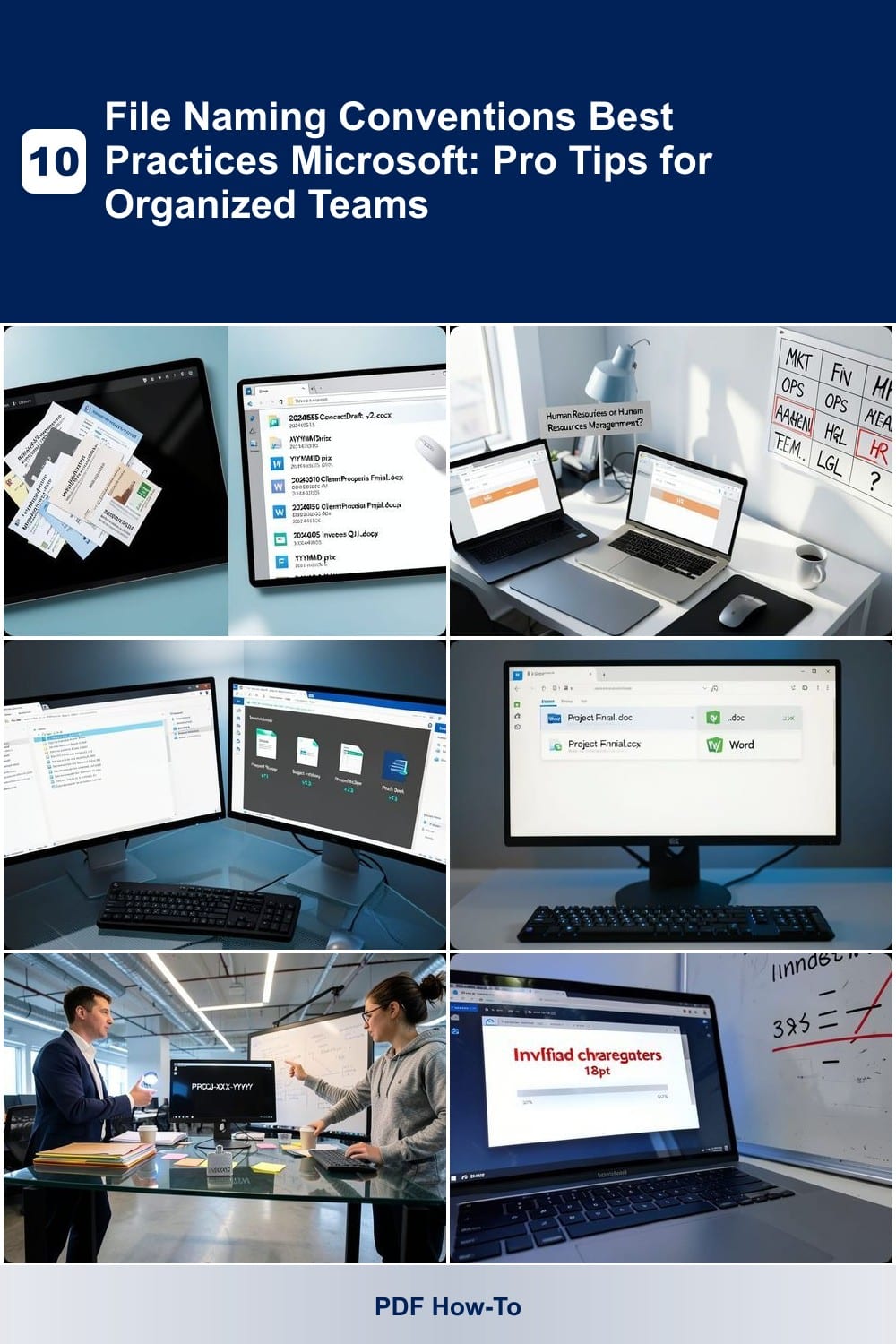
If you’ve ever spent minutes hunting for the right file in a cluttered folder, the YYYYMMDD prefix format is your game-changer. This structured approach ensures every document starts with a date—like 20240515ContractDraftv2.docx—so files sort chronologically in Windows Explorer without extra effort.
The 8-digit YYYYMMDD format eliminates ambiguity by replacing vague names like "Final_Project.docx" with clear timestamps. It’s especially valuable for legal teams, accountants, or project managers tracking revisions over time, while also working seamlessly with SharePoint and OneDrive. Combine it with underscores for readability, and you’ll never misplace a critical document again.
Perfect for industries where audit trails and version history matter most—this method turns chaos into a searchable, organized system. ⚡
Department-Specific Abbreviations Guide

Ever wasted time searching for files because "HR" could mean Human Resources or Human Resources Management? A department-specific abbreviations guide eliminates this confusion by assigning unique 3-letter codes to every team—like MKT for Marketing or FIN for Finance—while allowing custom mappings for your company’s structure.
The key is consistency: use the same codes across SharePoint, OneDrive, and local drives to ensure files are always findable. A standardized table (like an Excel sheet) with color-coded columns prevents mix-ups and speeds up cross-team collaboration. For example, HR vs. HRM becomes HRHR vs. HRMGMT—no more lost files in shared folders.
This system is a game-changer for enterprise teams, IT departments managing shared drives, and cross-functional projects where files move between departments. Implement it once, and your team will thank you every time they search for a file. ✨
Version Control Using Suffix Numbers
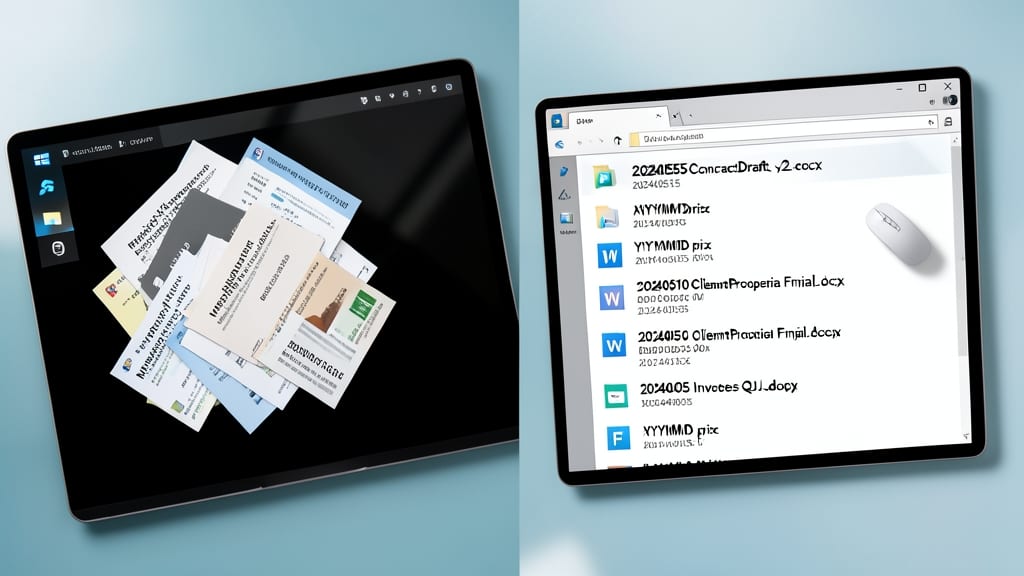
Tired of endless "finalv3.docx" chaos in shared drives? A structured version suffix system replaces guesswork with clear, sequential numbering that works across PowerPoint, Excel, and Word files.
Use FileNamev1, v2, v3 (or v01, v02) for automatic sorting in Windows Explorer. Microsoft’s SharePoint and OneDrive also recognize this format, making version tracking seamless. Pro tip: Combine with department codes (from the previous item) for full traceability—like MKTProposalv2.pptx.
This system is perfect for collaborative teams where multiple authors update the same files. It cuts down on "Which version is final?" emails and keeps your library clean. ✨
File Type Extensions Made Visible
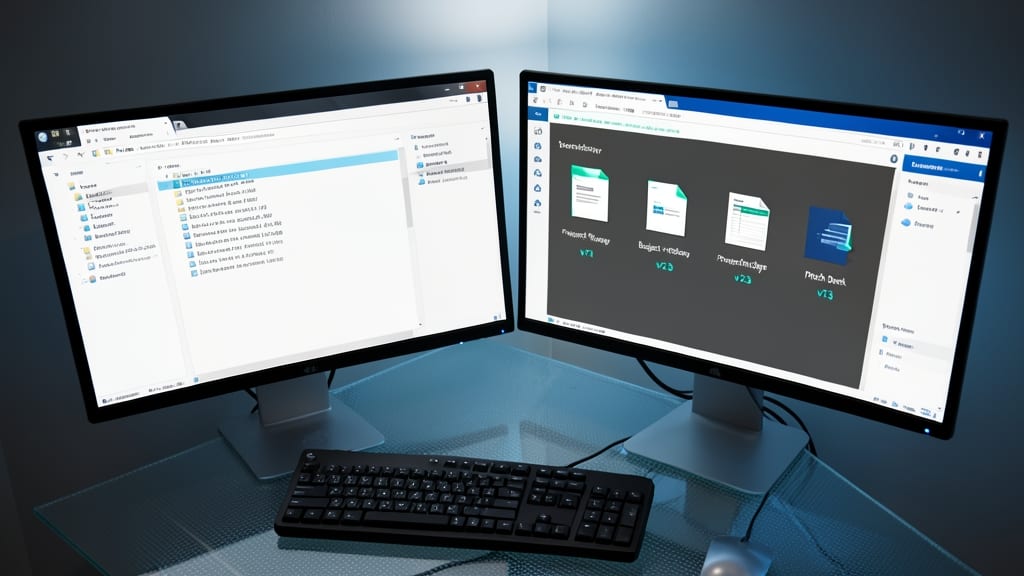
Ever opened a file only to discover it’s the wrong format—like a .doc instead of .docx—and lost hours of work? Enabling file extensions in Windows prevents this by making extensions visible, ensuring you always save as the correct format.
Windows hides extensions for "known file types" by default, but toggling this off in Folder Options forces visibility. This is especially critical for SharePoint compatibility, where older .doc files can corrupt when opened in modern Office suites. The fix takes seconds: open Control Panel > Folder Options > View, then uncheck "Hide extensions for known file types."
Teams working with legacy systems or SharePoint libraries will benefit most from this simple tweak—it’s a zero-config way to avoid file corruption and version mismatches. ✨
Project Code Naming for Cross-Team Files

When multiple teams work on the same project—like a marketing campaign or agile development sprint—file chaos can derail productivity. The PROJ-XXX-YYYY format solves this by embedding a project ID (XXX) and sequential number (YYYY) directly into filenames, ensuring every file stays organized and traceable.
This structure works perfectly with Microsoft Teams, SharePoint, and OneDrive, where files often get shared across departments. For example, a marketing team might label files as PROJ-MKT-045BrandGuide.pptx, while developers use PROJ-DEV-045CodeDraft.docx. The YYYY suffix ensures version control without manual tracking, and the three-letter prefix guarantees clarity for cross-team searches.
Ideal for product managers, agile teams, and campaign coordinators, this system eliminates confusion when files move between stakeholders. Implementing it in your workflow keeps everything aligned—no more lost files or version mix-ups! ✨
Special Characters Blacklist for SharePoint

Frustrated when SharePoint rejects your files with cryptic errors like "Invalid characters"? The special characters blacklist is your secret weapon—Microsoft explicitly blocks :/*?<>| to prevent system conflicts and corrupted uploads.
Replace troublesome symbols with these safe alternatives:
- Hyphens (-) instead of underscores () for readability
- Spaces ( ) or hyphens for separation
- Underscores () only when absolutely necessary
IT admins and document managers will love this rule—it eliminates upload headaches and keeps metadata searchable. 💡
Naming Templates for Common File Types

Tired of wasting time manually naming files like "meetingnotes.docx" or "photo12345.jpg"? Pre-built naming templates cut that guesswork by providing ready-to-use structures tailored to specific file types—so you can focus on content, not organization.
Use EML-YYYYMMDD-SenderRecipient for emails (e.g., EML-20240615-JohnDoeMarketing.pdf), IMG-YYYYMMDD-ProductName for images (e.g., IMG-20240615-ProductXLaunch.jpg), and VID-YYYYMMDD-EventName for videos (e.g., VID-20240615-TeamRetreat.mp4). These templates ensure instant sorting in Windows Explorer and seamless integration with SharePoint libraries—no more digging through folders to find what you need.
Content creators and IT support teams will love how these templates eliminate naming fatigue while keeping files searchable across devices. Just copy, paste, and customize—no training required! ✨