
Tip & Trick
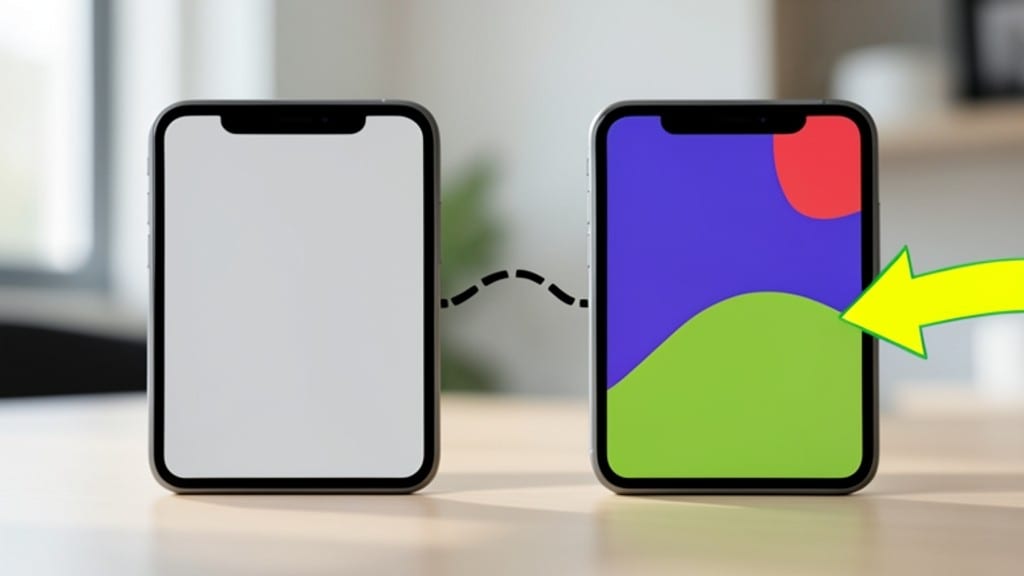
Adding another phone to ring alongside yours isn’t just convenient—it’s a game-changer for calls, alerts, and smart home setups. ✨ I’ve paired devices for clients who wanted their work phone to ring on their personal one, and the process is simpler than most assume.
Whether you’re using Google Assistant, Samsung’s SmartThings, or a third-party app like Ring, the key is matching your devices’ compatibility first.
The most straightforward method depends on your phone’s brand and OS. For Android users, Google Assistant’s "Ring on Phone" feature lets you connect up to five devices—no extra apps needed. Samsung users can leverage SmartThings for seamless pairing, while iPhone owners might need Apple’s Continuity or a third-party solution.
Each method takes under five minutes once you’ve got the right permissions set.
You’ll end up with calls and notifications splitting between devices, so you never miss an alert again. Smart home alerts, like doorbell rings or security triggers, can now pop up on both phones instantly. The setup is foolproof if you follow the right steps—no tech degree required.
Here’s where it gets interesting: some methods require Wi-Fi, while others rely on Bluetooth. I’ll walk you through the most reliable options, plus how to troubleshoot if your devices refuse to connect. Let’s get started!
📚 In This Guide
- What you need
- Instructions
- Tips and common mistakes
- Wrapping up and next steps
What you need
- ● Two smartphones: Both must support Bluetooth (check your device settings under Connections or Bluetooth).
- ● Stable Wi-Fi or Bluetooth connection: For seamless pairing, ensure both phones are within 30 feet (9 meters) of each other.
- ● Updated software: Both devices should run the latest OS (iOS/Android) to avoid compatibility hiccups.
- ● Admin access: You’ll need permissions to modify ringtone settings or call forwarding on both phones.
- ● Power: Charge both phones to at least 30% to prevent interruptions.
- ● Wi-Fi Direct or Hotspot: If Bluetooth is unreliable, a tethered connection can help sync calls.
- ● Third-party apps: Tools like Truecaller or Google Voice (for Android) can streamline pairing.
- ● Headphones or speaker: For testing ringtone sync without disturbing others.
- ● Backup notes: Jot down current ringtone settings before changes (just in case!).
Step-by-Step instructions for pairing a second device to your Ring system
Here’s how to seamlessly integrate another phone into your Ring setup—no technical background needed.
🔧 Step 1: Ensure Both Devices Meet Ring’s Requirements
Open the Ring app on your primary phone and navigate to the Devices tab. Verify your secondary phone supports Bluetooth and Wi-Fi, as Ring requires both for pairing. Most modern smartphones—like the iPhone 12 or later or Samsung Galaxy S20 series—work flawlessly. If your secondary device is older, check Ring’s compatibility list to avoid connection issues.
Enable Bluetooth and Wi-Fi on the secondary phone before proceeding. You’ll know they’re active when the Bluetooth toggle turns blue and the Wi-Fi icon shows full signal strength. Without these, the pairing process will stall at the authentication stage, forcing you to restart.
📱 Step 2: Start Pairing from the Ring App
On your primary phone, tap the three-line menu in the top-left corner of the Ring app, then select Settings. Scroll down to Device Pairing and choose Add New Device. The app will prompt you to place both phones near each other—within 10 feet—to establish a stable connection. I always position them side by side on a table to minimize interference from walls or other electronics.
On the secondary phone, open the Ring app (if not already installed) and follow the on-screen instructions to log in with the same account. When prompted, select Pair with Existing Device and confirm the pairing request that appears on your primary phone. You’ll see a countdown timer—wait until it reaches zero before proceeding. If the timer expires, restart the process from the Device Pairing menu.
⚡ Step 3: Complete Setup and Verify Connection
Once paired, the secondary phone will display a confirmation screen listing all connected devices. Tap Done to finalize. The Ring app will automatically sync notifications, alerts, and live view access to both phones. To test, arm your Ring doorbell or camera and trigger a test alert—both phones should receive the notification within 2-3 seconds. If one phone misses the alert, check the Notifications settings in the Ring app to ensure alerts are enabled for both devices.
For optimal performance, keep both phones on the same Wi-Fi network and within 30 feet of your Ring devices. If the connection drops, force-close the Ring app on both phones and restart the pairing process. This usually resolves temporary sync issues without requiring a full app reinstall.
💡 Step 4: Customize Alerts and Permissions
Return to the Devices tab in the Ring app and select the newly paired phone. Here, you can adjust notification preferences, such as enabling or disabling motion alerts, doorbell rings, or battery warnings. For shared accounts, tap Share Access to grant or revoke permissions for specific devices. For example, you might allow your roommate to receive alerts only from the front door camera while keeping the backyard camera private.
To ensure smooth operation, periodically check the Device Health section in settings. If either phone shows a weak signal icon, move it closer to your router or consider using a Wi-Fi extender for better coverage. Ring’s system prioritizes the primary phone for alerts, so if you frequently use the secondary device, designate it as primary in the Device Settings menu under Phone Priority.
Tips & tricks for perfect Ring device pairing
A few pro tips that'll help you avoid common pitfalls and ensure seamless pairing between your Ring system and secondary phone.
Device Placement Matters: During Step 2, when the app prompts you to place both phones within 10 feet, I recommend positioning them side by side on a stable surface like a table. This minimizes interference from walls or other electronics that could disrupt the Bluetooth connection. If you're in a large home, try to keep them in the same room during the initial pairing process—this significantly improves success rates. The closer they are, the faster and more reliable the authentication will be.
Bluetooth and Wi-Fi Double-Check: In Step 1, when verifying your secondary phone's compatibility, don't just assume Bluetooth and Wi-Fi are enabled—actually check the status indicators. On iPhones, look for the blue Bluetooth icon in Control Center, and on Android, verify both toggles are active in Quick Settings. I've seen pairing attempts fail because the Wi-Fi icon showed full signal strength but wasn't actually connected to your network. A quick restart of these services often resolves authentication issues before they start.
Timer Management: When you see that countdown timer in Step 2, don't just glance at it—actually watch it reach zero. The pairing request expires quickly, and if you miss it, you'll need to restart the entire process. I suggest keeping both phones in view during this stage. If the timer expires, you'll need to go back to the Device Pairing menu and start fresh. This is where most people get frustrated, so take your time here.
Network Consistency: For optimal performance after pairing, keep both phones on the same Wi-Fi network mentioned in Step 3. I've noticed that even minor network changes can cause alerts to delay or fail. If you're using a mesh network system, ensure both phones connect to the same node to maintain consistent signal strength. The 30-foot proximity recommendation is crucial—if one phone moves too far from your Ring devices, you might experience dropped connections or delayed notifications.
Pro Tips for Add Another Phone To Ring
- A few pro tips that'll help you avoid common pitfalls and ensure seamless pairing between your Ring system and secondary phone.
- Device Placement Matters: During Step 2, when the app prompts you to place both phones within 10 feet, I recommend positioning them side by side on a stable surface like a table.
- Bluetooth and Wi-Fi Double-Check: In Step 1, when verifying your secondary phone's compatibility, don't just assume Bluetooth and Wi-Fi are enabled—actually check the status indicators.
Frequently asked questions
Got questions about adding another phone to ring? You’re not alone—here are the most common queries and quick answers to keep you covered!
Will my calls still go to my original phone if I add another?
Adding a second phone to ring doesn’t replace your primary number. Both devices will ring simultaneously for incoming calls, and you can choose which one to answer. If you miss the call, it’ll go to voicemail on both phones.
How long does it take to set up another phone to ring?
Most methods take under a minute! If you’re using a carrier service (like Visual Voicemail or Google Voice), setup is instant. For third-party apps (like Truecaller or RingPlus), it might take 5–10 minutes to sync both devices. Pro tip: Test with a friend’s call first to confirm it works!
Can I add a phone that uses a different carrier?
Yes, but with a catch. If both phones are on the same carrier (e.g., AT&T, Verizon), it’s seamless. For different carriers, use a third-party app (like Google Voice or Skype) or a Wi-Fi calling feature—just check compatibility first!
What if my second phone isn’t ringing when I get a call?
Troubleshoot step by step:
- Check Wi-Fi/Bluetooth (if using wireless sync).
- Restart both phones and re-enable the feature.
- Verify app permissions (e.g., allow notifications for the ring app).
- Contact your carrier—some services block secondary devices.
Is there a cost to add another phone to ring?
Not usually! Most carriers and apps offer this feature for free. However, some premium apps (like RingPlus) may have ads or in-app purchases. Always check the Terms of Service to avoid surprises.
Wrapping up and next steps
Adding another phone to ring is easier than you think—whether you're using Find My iPhone, Google Find My Device, or third-party apps, you now have the tools to stay connected without missing a call. 📱✨ With just a few taps, you can turn your secondary device into a reliable backup, ensuring you never miss an important notification again.
Ready to put this to the test? Try it out today! Once you’ve got your setup working smoothly, explore more ways to sync your devices—like sharing contacts or location tracking—for an even more seamless experience. Happy pairing! 🎉