
Coding
Excel’s math and trigonometry functions unlock powerful data analysis capabilities. Master these 10 essential formulas to transform raw numbers into actionable insights—whether you're modeling financial projections, engineering designs, or statistical trends.
SUM Function for Basic Arithmetic Operations

If you’ve ever needed to quickly tally up numbers—whether it’s monthly expenses, inventory counts, or sales figures—the SUM function is your go-to tool in Excel. This simple yet powerful formula instantly adds up values across cells, rows, or columns, saving hours of manual calculations.
To use it, type =SUM(range) in any cell, where "range" is the group of cells you want to add (e.g., =SUM(A1:A10)). It even handles non-adjacent ranges (e.g., =SUM(A1, C3:D5)) and ignores empty or text-filled cells. For financial summaries, combine it with SUMIF or SUMIFS to filter conditions, like summing only "revenue" rows.
Perfect for beginners and pros alike, SUM is the backbone of spreadsheets—whether you’re crunching numbers for a startup budget or a corporate report. ⚡
SQRT Function for Square Root Calculations

When your calculations involve square roots—whether for variance in statistics or physics equations—Excel’s SQRT function is your fastest shortcut. Instead of manually typing =√, this built-in formula handles the heavy lifting in milliseconds, reducing errors and saving time.
The syntax is simple: =SQRT(number), where the input can be a cell reference (e.g., =SQRT(A1)) or a hardcoded value (e.g., =SQRT(144)). It returns the principal (non-negative) square root, making it ideal for standard deviation calculations or signal processing where precision matters. For negative inputs, Excel returns a #NUM! error—just remember to use absolute values first.
This function is a game-changer for data analysts, engineers, and finance professionals working with root-mean-square (RMS) values or Monte Carlo simulations. No need for external calculators—just type, and Excel does the rest. ✨
PI Function for Circular Measurements

Need to calculate the circumference of a pipe or the area of a circular foundation? The PI function in Excel is your secret weapon—it automatically pulls the precise value of π (3.14159265358979) to eliminate manual entry errors and ensure accuracy in your designs.
Simply type =PI() into any cell, and Excel returns the exact value of π. Pair it with other functions like **=PI()radius² to calculate area or =2PI()*radius for circumference. This function is especially valuable in engineering blueprints or architectural plans, where even a tiny miscalculation can derail a project.
Whether you're designing machinery parts or planning circular garden layouts, the PI function** saves time and reduces frustration by eliminating guesswork. ⚡
SIN, COS, TAN for Trigonometric Analysis

Need to turn angles into actionable data? Excel’s SIN, COS, and TAN functions instantly convert degrees or radians into metrics for wave modeling, structural engineering, or navigation systems—no manual calculations required.
Use SIN to model sound waves or oscillating systems, COS for periodic motion like pendulums, and TAN for slope calculations in civil engineering. All three accept angles in radians or degrees (just set your worksheet’s angle unit first), and they integrate seamlessly with other Excel functions for complex workflows.
Perfect for engineers, physicists, or DIYers designing anything from bridges to audio equipment—these functions bridge the gap between abstract math and real-world problem-solving. ✨
ASIN, ACOS, ATAN for Inverse Trigonometry

Stuck with a right triangle where only the sides are known? The ASIN, ACOS, and ATAN functions let you solve for the missing angles instantly—no protractor required. These inverse trig functions flip the script on SIN, COS, and TAN by returning angles in radians (or degrees if converted), making them indispensable for precision tasks.
Use ACOS to find the angle opposite a known adjacent side (e.g., =ACOS(adjacent/hypotenuse)), ASIN for the angle opposite a known opposite side, or ATAN for the angle between two sides (e.g., =ATAN(opposite/adjacent)). They’re perfect for robotics pathfinding, land surveying calculations, or even debugging game physics where angles dictate movement.
Engineers and hobbyists designing drones or 3D models will love how these functions handle edge cases—just wrap them in DEGREES() to get human-readable outputs. ⚡
POWER Function for Exponential Calculations

Tired of manually calculating compound interest or population growth? The POWER function in Excel automates exponential calculations with a single formula—no more tedious multiplication loops or risk of human error.
Simply use =POWER(base, exponent) to compute results instantly. For example, =POWER(2, 10) delivers 1,024 (2¹⁰) in milliseconds. It’s perfect for financial modeling, scientific simulations, or scaling datasets where precision matters.
Financial analysts, data scientists, and educators will find this function indispensable for maintaining consistency across large datasets. ⚡
ROUND Function for Precision Control
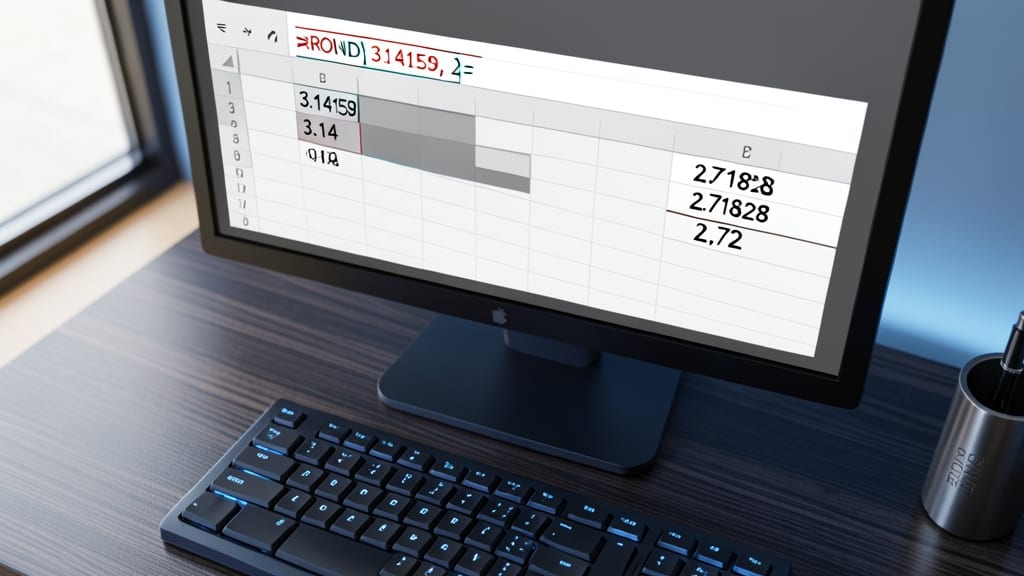
Tired of decimal clutter ruining your financial reports or engineering specs? The ROUND function in Excel is your secret weapon for clean, professional numbers—no more messy approximations.
With just two arguments—your number and desired decimal places—it instantly rounds 3.14159 to 3.14 or 2.71828 to 2.72. Need more control? Combine it with MROUND for rounding to the nearest 5 or 10, or use ROUNDUP/ROUNDDOWN for conservative estimates. It even handles negative numbers flawlessly.
Perfect for accountants crunching quarterly reports, engineers documenting specifications, or analysts presenting data—this function ensures your numbers look polished and professional without manual adjustments. ✨
RADIANS Function for Angle Conversions

When your calculations hinge on SI unit compliance—like in physics engines or scientific programming—the RADIANS function bridges the gap between degrees and radians effortlessly. Unlike manual conversions, this built-in Excel tool ensures precision while saving hours of debugging.
Simply input RADIANS(angleindegrees) to transform values like 180° into π radians instantly. It’s the backbone of trigonometric calculations in programming (e.g., Unity, MATLAB) and engineering simulations where radians are the standard. Pair it with SIN or COS for seamless workflows.
Perfect for students, engineers, or developers working with scientific libraries—this function eliminates guesswork and keeps your models mathematically sound. ✨
DEGREES Function for Trigonometric Workflows
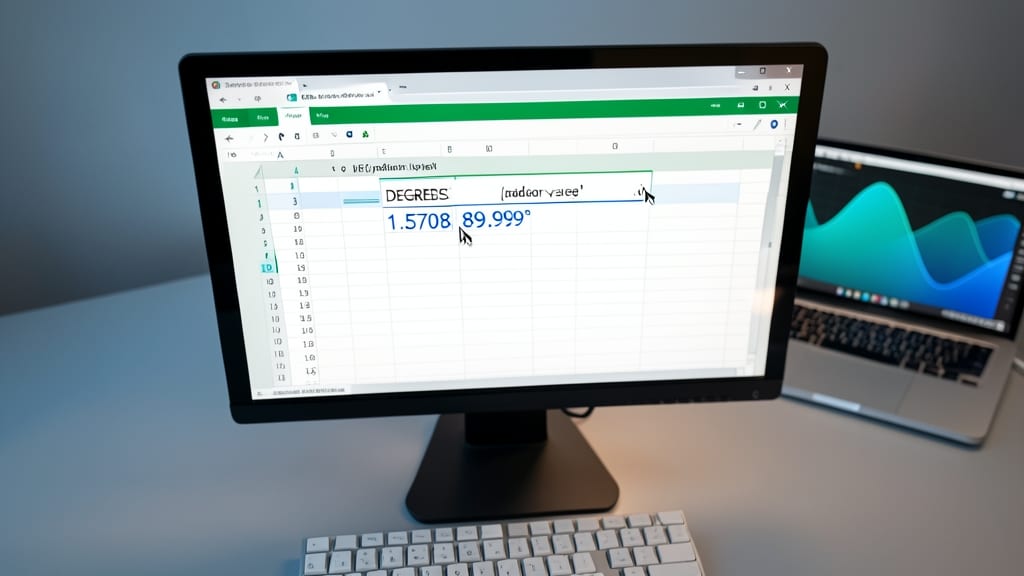
Frustrated when trigonometric calculations spit out radians instead of intuitive degrees? The DEGREES function in Excel is your lifesaver—it converts radians back to degrees instantly, making complex models readable for real-world applications.
Simply input =DEGREES(radian_value), and Excel transforms results like π radians (≈3.14159) into 180°—perfect for navigation, engineering, or physics projects. It pairs flawlessly with RADIANS and SIN/COS for bidirectional conversions, ensuring your angles align with both math and practical use cases.
Ideal for architects visualizing slopes, pilots interpreting flight paths, or anyone translating scientific data into tangible measurements. ⚡
ATAN2 Function for Advanced Angle Calculations

Need to calculate angles with 100% accuracy across all four quadrants? The ATAN2 function is your secret weapon—unlike ATAN, it accounts for both x and y coordinates, delivering precise directional data every time.
Simply input ATAN2(y,x) to get the angle in radians between the positive x-axis and your point. This makes it perfect for GPS navigation (calculating compass headings), robotics (determining joint angles), or computer graphics (rotating objects). The function handles edge cases like negative values seamlessly, ensuring no calculation errors creep in.
Engineers, game developers, and data scientists will find ATAN2 indispensable for projects where quadrant awareness matters—no more guessing which direction your data points are facing. ✨