
Troubleshooting
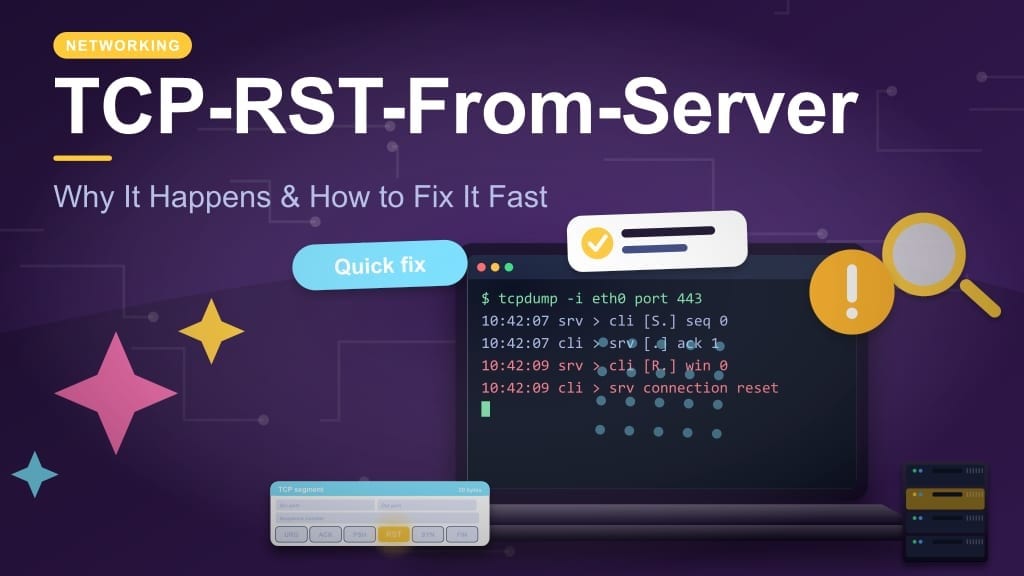
A TCP-RST-from-server error shuts down your connection mid-session, whether you're streaming, gaming, or working remotely — and it’s more common than you think.
One minute you’re connected, the next your app crashes with no warning, leaving you staring at a blank screen. This isn’t just a minor hiccup; it’s often a sign of deeper network issues, like firewall misconfigurations, server overloads, or even ISP interference.
Don’t panic — this guide cuts through the tech jargon to show you how to diagnose the problem in under 5 minutes and apply fixes that actually work, whether you’re on Windows, Linux, or a cloud service.
From adjusting firewall rules to tweaking TCP settings, you’ll learn the exact steps to restore your connection without losing hours to trial and error.
What TCP-RST-from-server means and common causes
A TCP-RST from server error occurs when a server abruptly terminates your connection by sending a TCP Reset (RST) flag during the handshake or active session. Unlike normal TCP FIN (graceful closure), an RST immediately drops the connection, often leaving your client device confused.
This typically happens during HTTP requests, SSH sessions, or gaming connections when the server detects an issue.
The error isn't just a generic "connection failed" message—it's a network-level signal from the server indicating a problem. Whether you're loading a webpage, connecting to a VPN, or playing online, this RST flag forces your device to abandon the session instantly.
Understanding why it happens is the first step to fixing it.
On the server side, a TCP-RST is often triggered by firewall rules explicitly blocking your connection. For example, a Linux server with iptables or ufw might reject SYN packets from your IP range, sending an RST instead of a standard ICMP "Port Unreachable".
This is common in DDoS-protected environments where aggressive filtering is enabled.
Misconfigured TCP stack settings can also cause RSTs. For instance, a web server with tcpsyncookies enabled might drop connections if the backlog queue fills up during traffic spikes.
Even a load balancer or CDN (like Cloudflare) can send RSTs if it detects suspicious activity, such as SYN floods or malformed packets.
Client-side issues often stem from network instability or software conflicts. A sudden Wi-Fi disconnection during a TCP handshake can leave the server waiting indefinitely, prompting it to send an RST. Similarly, VPN software or proxy settings might interfere with the connection, causing the server to reset the session prematurely.
In gaming scenarios, TCP-RST errors often appear when connecting to dedicated servers. This can happen if the game's U
Step-by-step fixes for TCP-RST errors on Windows/Linux
A TCP-RST from server error typically means the server abruptly terminated your connection before completing the handshake. This often happens due to firewall rules, network misconfigurations, or server-side restrictions. Let’s start with the fastest fixes before diving into deeper diagnostics.
Begin by ruling out client-side issues like VPNs, proxies, or corrupted network settings. If you’re connecting to a remote server or public website, try accessing it from another network (e.g., mobile hotspot) to isolate whether the problem is local or server-wide.
⚠️ PRO TIP: Use Command Prompt (Windows) or Terminal (Linux) to test connectivity with ping and telnet before troubleshooting further.
Quick Fixes for TCP-RST Errors
- 1. Disable VPN/Proxy: Temporarily turn off any VPN or proxy software that may interfere with direct server communication.
-
2. Reset Network Adapter:
- Windows: Run `netsh winsock reset` and `ipconfig /flushdns` in Admin Command Prompt.
- Linux: Restart the interface with `sudo systemctl restart networking` or `sudo ifdown eth0 && sudo ifup eth0`.
-
3. Adjust Firewall Rules:
- Windows: Temporarily disable Windows Defender Firewall via Control Panel > Windows Defender Firewall > Turn Windows Defender Firewall on or off.
- Linux: Check `iptables` or `ufw` rules with `sudo iptables -L` or `sudo ufw status` and allow outgoing traffic to the target port.
-
4. Disable TCP Offloading: In Device Manager (Windows) or Network Settings (Linux), disable:
- Large Send Offload (LSO)
- TCP Chimney Offload
- IPv4 Checksum Offload
-
5. Update Network Drivers:
- Windows: Use Device Manager to update Ethernet/Wi-Fi drivers.
- Linux: Update kernel modules with `sudo apt update && sudo apt upgrade` (Debian/Ubuntu) or `sudo dnf upgrade` (Fedora/RHEL).
-
6. Check Server-Side Configs: If you control the server, verify:
- Firewall rules (e.g., Apache/Nginx allow traffic on port 80/443).
- TCP keepalive settings in `/etc/sysctl.conf` (Linux) or Registry (Windows).
If the issue persists after these steps, the problem may lie with server-side configurations or intermediary devices (e.g., load balancers, routers). For deeper diagnostics, use tools like tcpdump or Wireshark to capture packets and identify where the RST originates.
For gaming servers or cloud services, contact the provider’s support team—they may enforce rate limits or anti-DDoS measures triggering RST flags. Always test with a clean network setup to rule out local interference.